
Let's consider a problem and its solution. There is a website https://www.site.com/ — for example, an online store. There is also a subdomain https://news.site.com/ where some news for this online store are posted. Goal:
configure Google Analytics (Universal Analytics) so that we can view the traffic of the subdomain https://news.site.com/ separately. To achieve this, you need to copy the view from the main account (currently at https://www.site.com/), name the new view accordingly (for example: news.site.com) for easier access, and apply several filters to see only the traffic of that subdomain. Let's walk through this step by step:
1. Copying a view in Google Analytics
To copy a view in Google Analytics, follow these steps:
- Log in to Google Analytics and open the Admin page.
- Select the property and view you want to copy.
- In the view settings, click Copy view at the bottom of the page. Enter a name for your new view (the subdomain name works well, for example: news.site.com). Click the Copy view button.
2. Creating a filter for all subdomain traffic in Google Analytics
To create a new filter in Google Analytics, do the following:
- Open the Admin page (top‑right corner of any Google Analytics page).
- In the Account column, select the appropriate account and choose All Filters.
- Click the + New Filter button and select Create new filter.
- Enter a descriptive name for the new filter.
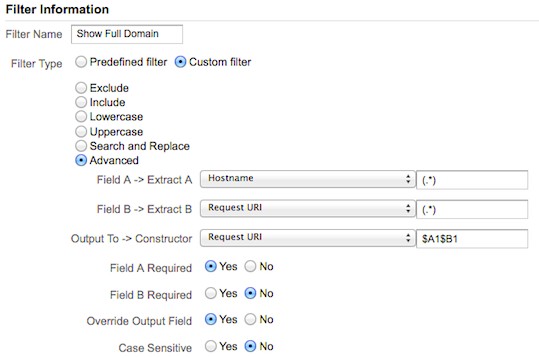
Applying this filter will allow you to see traffic from all subdomains of your site.
3. Creating a filter for a specific subdomain's traffic in Google Analytics
Next, go to Admin -> Views -> Filters and create another new filter, setting its parameters as shown in the image below:
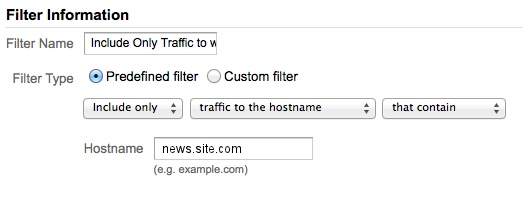
After applying this filter, your new view (named news.site.com) will display only the traffic for the subdomain https://news.site.com/, which is exactly what we wanted.